Connect Supabase Postgres to Directus
← Back to Supabase Integration
This guide covers connecting a self-hosted Directus instance to a Supabase PostgreSQL database. Supabase provides the database; Directus runs separately on your own host using Docker Compose.
Before You Start
This guide sets up two separate things that work together:
- Supabase hosts your PostgreSQL database. It provides the database only. It does not run Directus.
- Directus runs on a separate host using Docker Compose. This can be your local machine for development, or a server or cloud platform (such as Railway, Render, or a VPS) for production. See Self-hosting: Deploying for options.
You will need:
- A Supabase project with PostgreSQL available
- A machine or host where you can run Docker and Docker Compose
- Network access from that host to Supabase Postgres on port 5432
Get your connection details from Supabase
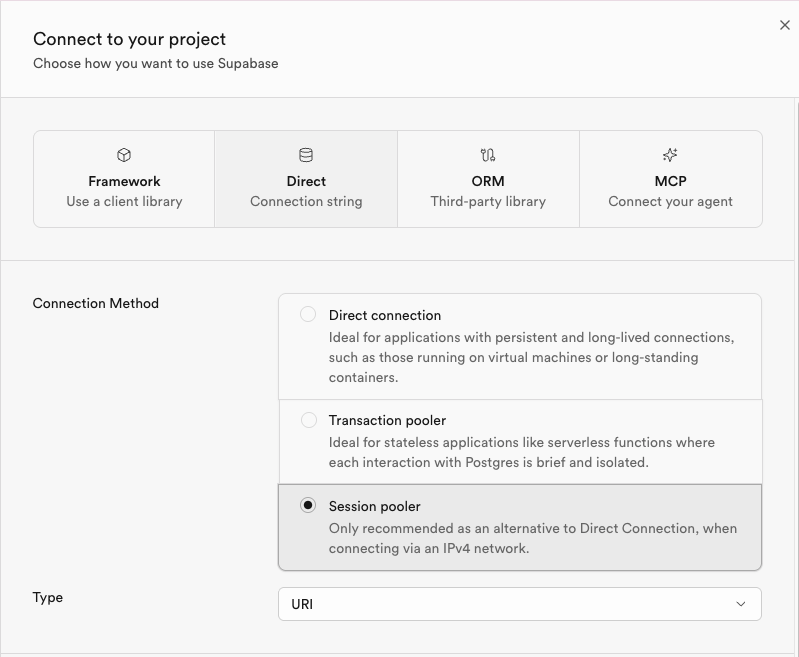
This guide uses the Session pooler connection. It works on any host regardless of IPv4 or IPv6 support, which makes it the right default for local Docker Desktop setups and most production environments.
- Open the Supabase Dashboard and select your project.
- Click the green Connect button in the top navigation bar.
- In the "Connect to your project" modal, find the Session pooler connection and copy the host, port, database, and user values.
Configure Directus with Docker Compose
Enter your Session pooler connection details into the fields below to generate a ready-to-use docker-compose.yml.
Set PUBLIC_URL to the URL clients use to reach Directus. Add other required variables for your environment (see General and Self-hosting: Deploying).
SSL settings
Do not set DB_SSL=true when connecting through Supabase's session pooler. The pooler uses Supabase's own CA certificate, which is not in Node's default bundle. Setting DB_SSL=true causes a SELF_SIGNED_CERT_IN_CHAIN error and the connection fails.
Use the nested SSL variables instead:
- Local development: set
DB_SSL__REJECT_UNAUTHORIZED=false. The generated files above already do this. - Production: download Supabase's CA certificate, set
DB_SSL__CA_FILEto the path of that file, and keepDB_SSL__REJECT_UNAUTHORIZED=true. See Database for the full variable reference.
Directus connects to PostgreSQL with one database user and issues queries with that user's privileges. Supabase RLS policies do not apply to data accessed through Directus in the same way they do for the Supabase client scoped to an end-user JWT.Do not rely on RLS to enforce access control for content edited in Directus. Configure Directus permissions and roles and API tokens instead.
Verify the connection
- Start the stack:
docker compose up(or your orchestrator equivalent) - Watch logs for successful startup and database migration messages
- Open Directus at
PUBLIC_URL, complete onboarding if prompted, and sign in - In the Data Studio, confirm collections load and create a test item in a non-system collection when you have one
Optional: Directus Labs starters
Directus Labs starters ship a Docker Compose stack that includes Directus, Redis, and a local Postgres container. To use Supabase Postgres instead, keep Directus and Redis and point Directus at Supabase using environment variables. You do not need to fork the starters repository. These are local edits only.
The compose file and .env live in the starter's directus folder (for example cms/directus/docker-compose.yaml), not the frontend app root.
1. Set up your .env
In the same folder as docker-compose.yaml, copy .env.example to .env and add or update these values with your Supabase connection details. To fill these in automatically, use the configurator above: switch to the .env tab, enter your connection details, and copy or download the result.
# Supabase Postgres — paste values from the Session pooler in the Supabase Connect modal
DB_HOST=aws-0-YOUR_REGION.pooler.supabase.com
DB_PORT=5432
DB_DATABASE=postgres
DB_USER=postgres.YOUR_PROJECT_REF
DB_PASSWORD=YOUR_DATABASE_PASSWORD
DB_SSL__REJECT_UNAUTHORIZED=false

# Directus URL — must match the address you open in the browser
PUBLIC_URL=http://localhost:8055
Keep all other variables from .env.example (DIRECTUS_SECRET, ADMIN_*, CORS_*, Redis and cache settings) unless you intentionally need to change them.
2. Edit docker-compose.yaml
Three things need to change. The diff below shows what to remove (red) and what to add (green). Leave everything else as it is.
 name: directus-template
 services:
-  database:
-    image: postgis/postgis:16-master
-    platform: linux/amd64
-    volumes:
-      - ./data/database:/var/lib/postgresql/data
-    environment:
-      POSTGRES_USER: ${DB_USER}
-      POSTGRES_PASSWORD: ${DB_PASSWORD}
-      POSTGRES_DB: ${DB_DATABASE}
-    healthcheck:
-      test: ['CMD', 'pg_isready', '-U', '${DB_USER}', '-d', '${DB_DATABASE}', '-h', 'localhost']
-      interval: 10s
-      timeout: 5s
-      retries: 5
-      start_interval: 5s
-      start_period: 30s
-
   cache:
     image: redis:6

   directus:
     image: directus/directus:11.17.4
     depends_on:
-      database:
-        condition: service_healthy
       cache:
         condition: service_healthy
     environment:
       DB_CLIENT: 'pg'
-      DB_HOST: 'database'
-      DB_PORT: '5432'
+      DB_HOST: ${DB_HOST}
+      DB_PORT: ${DB_PORT}
       DB_DATABASE: ${DB_DATABASE}
       DB_USER: ${DB_USER}
       DB_PASSWORD: ${DB_PASSWORD}
+
+      DB_SSL__REJECT_UNAUTHORIZED: ${DB_SSL__REJECT_UNAUTHORIZED}

       CACHE_ENABLED: ${CACHE_ENABLED}
3. Start the stack
From the directus folder:
docker compose up -d
Then follow the starter README to complete setup.
Next Steps
Get once-a-month release notes & real‑world code tips...no fluff. 🐰