Use Supabase Storage with Directus
← Back to Supabase Integration
Supabase Storage is object storage with an S3-compatible API. This guide configures Directus to store uploaded files in a Supabase bucket. Your database configuration is separate: you can use this with a local Postgres database, with Supabase Postgres, or anything else. See Connect Supabase Postgres to Directus if you also want the database in Supabase.
Directus supports two drivers for Supabase Storage (see Files):
supabasedriver: configure with your project service role JWT, project ID, and bucket name.s3driver: configure with S3 access keys, region, and endpoint. Use this when you follow Supabase's S3 authentication flow or want the same pattern as other S3-compatible storage.
This guide uses the s3 driver.
Before You Start
You will need:
- A self-hosted Directus instance where you can set environment variables
- A Supabase project with Storage enabled
- S3 protocol access enabled in Supabase, with S3 access keys generated. Treat these as server secrets: they have broad access across your project's buckets and bypass Storage RLS.
Get storage credentials from Supabase
- Open the Supabase Dashboard and select your project.
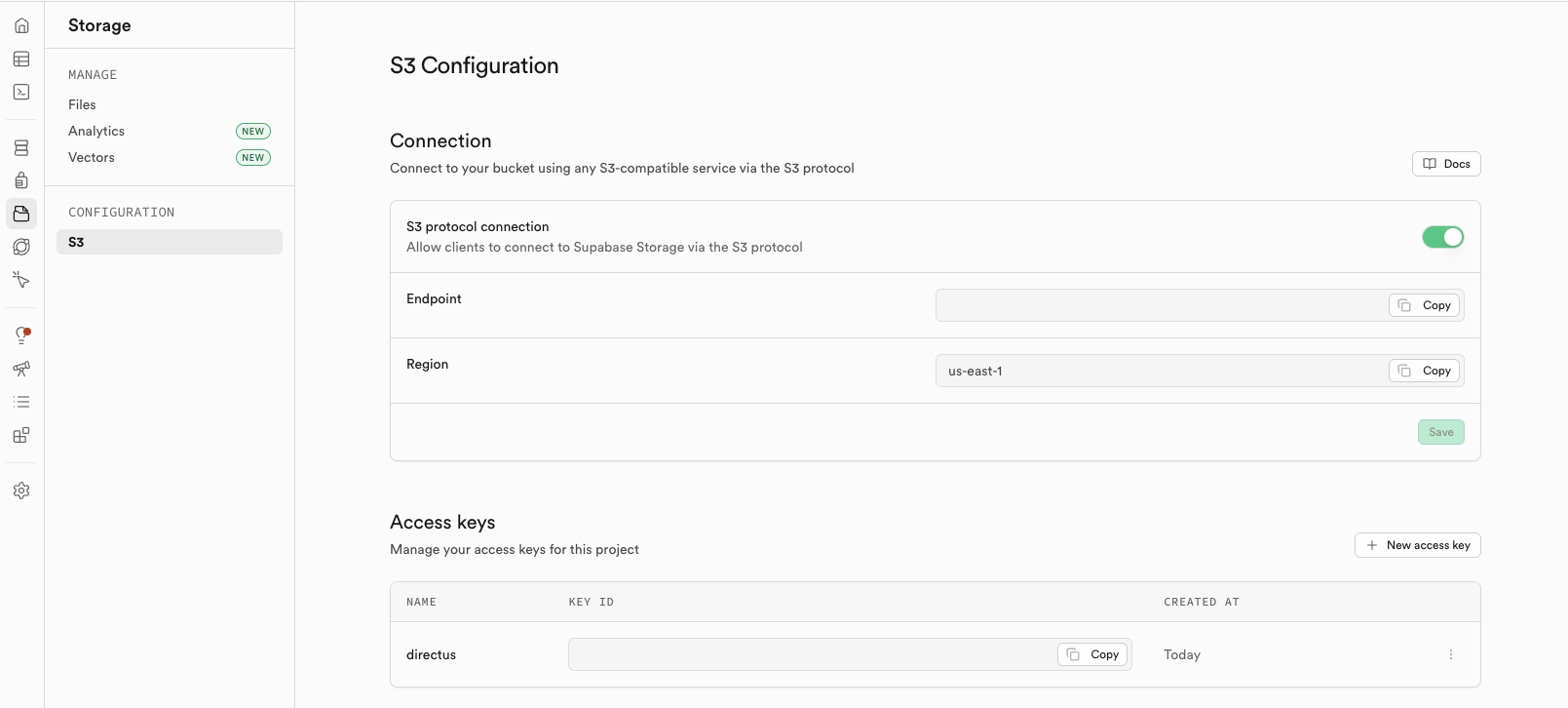
- In the left sidebar, click Storage, then under Configuration click S3.
- Enable the S3 protocol connection toggle if it is not already on. Copy the Endpoint and Region values shown on the page.
- Click New access key to generate S3 access keys and copy:
- Access key ID and Secret access key (store the secret securely - Supabase may only show it once)
Create a bucket
- In the left sidebar, click Storage, then click Files.
- Click New bucket and fill in the creation dialog:
- Bucket name: enter a name for the bucket (for example
directus-assets). This cannot be changed after creation. - Public bucket: enable this if assets need to be publicly readable by URL (typical for images served on a site). Leave it off if files should stay private.
- Leave Restrict file size and Restrict MIME types off unless you have specific requirements.
- Bucket name: enter a name for the bucket (for example
- Click Create.
Configure Directus
Choose a name for this storage location. It must be uppercase in all variable names. This guide uses SUPABASE.
| Variable | Value | Notes |
|---|---|---|
STORAGE_LOCATIONS | SUPABASE or local,SUPABASE | First entry is the default destination for new uploads. See File uploads. |
STORAGE_SUPABASE_DRIVER | s3 | |
STORAGE_SUPABASE_KEY | S3 access key ID | |
STORAGE_SUPABASE_SECRET | S3 secret access key | |
STORAGE_SUPABASE_BUCKET | Your bucket name | |
STORAGE_SUPABASE_REGION | Region from Storage > Configuration > S3 | |
STORAGE_SUPABASE_ENDPOINT | Endpoint URL from Storage > Configuration > S3 | |
STORAGE_SUPABASE_FORCE_PATH_STYLE | true | Required. Supabase's S3 API requires path-style addressing. |
For a standalone Docker Compose setup, add these to your environment block:
STORAGE_LOCATIONS: "SUPABASE"
STORAGE_SUPABASE_DRIVER: "s3"
STORAGE_SUPABASE_KEY: "your-access-key-id"
STORAGE_SUPABASE_SECRET: "your-secret-access-key"
STORAGE_SUPABASE_BUCKET: "directus-assets"
STORAGE_SUPABASE_REGION: "your-region"
STORAGE_SUPABASE_ENDPOINT: "your-endpoint-url"
STORAGE_SUPABASE_FORCE_PATH_STYLE: "true"
Optional S3 tuning (timeouts, encryption, ACLs) is available in Files.
Directus Labs starters
Directus Labs starters are pre-built project templates that pair Directus with popular frontend frameworks. Each starter ships a Docker Compose stack with Directus, Redis, and a local Postgres container. If you are using a starter and want to store uploaded files in Supabase instead of locally, follow these steps.
The compose file and .env live in the starter's directus folder (for example cms/directus/), not the frontend app root.
Starters list environment variables explicitly in docker-compose.yaml. To add Supabase Storage you need to do two things: add the values to .env, and wire them into the compose file so Docker Compose passes them into the container.
1. Add to .env
In the same folder as docker-compose.yaml, add these to your .env. Replace the placeholder values with the actual values you copied from Storage > Configuration > S3 and your access key:
# Supabase Storage - S3 driver
STORAGE_LOCATIONS=SUPABASE
STORAGE_SUPABASE_DRIVER=s3
STORAGE_SUPABASE_KEY=your-access-key-id
STORAGE_SUPABASE_SECRET=your-secret-access-key
STORAGE_SUPABASE_BUCKET=directus-assets
STORAGE_SUPABASE_REGION=your-region
STORAGE_SUPABASE_ENDPOINT=your-endpoint-url
STORAGE_SUPABASE_FORCE_PATH_STYLE=true
2. Add to docker-compose.yaml
Add the matching lines under services.directus.environment. The diff below shows where they go:
     environment:
       SECRET: ${DIRECTUS_SECRET}

       DB_CLIENT: 'pg'
       DB_HOST: ${DB_HOST}
       DB_PORT: ${DB_PORT}
       DB_DATABASE: ${DB_DATABASE}
       DB_USER: ${DB_USER}
       DB_PASSWORD: ${DB_PASSWORD}

+      STORAGE_LOCATIONS: ${STORAGE_LOCATIONS}
+      STORAGE_SUPABASE_DRIVER: ${STORAGE_SUPABASE_DRIVER}
+      STORAGE_SUPABASE_KEY: ${STORAGE_SUPABASE_KEY}
+      STORAGE_SUPABASE_SECRET: ${STORAGE_SUPABASE_SECRET}
+      STORAGE_SUPABASE_BUCKET: ${STORAGE_SUPABASE_BUCKET}
+      STORAGE_SUPABASE_REGION: ${STORAGE_SUPABASE_REGION}
+      STORAGE_SUPABASE_ENDPOINT: ${STORAGE_SUPABASE_ENDPOINT}
+      STORAGE_SUPABASE_FORCE_PATH_STYLE: ${STORAGE_SUPABASE_FORCE_PATH_STYLE}
+
       CACHE_ENABLED: ${CACHE_ENABLED}
3. Restart the stack
From the directus folder:
docker compose up -d
directus folder. The database and storage variables do not conflict.Verify uploads
- Restart Directus after changing storage environment variables.
- Open File Library in the Data Studio and upload a test image.
- In the Supabase Dashboard, open Storage, select your bucket, and confirm the object appears.
- Load the asset through your Directus URL and confirm access matches your bucket's public or private setting.
If uploads fail, check the endpoint (including /storage/v1/s3), region, access keys, FORCE_PATH_STYLE, and bucket name. See Files for driver limits and health checks.
Next Steps
Get once-a-month release notes & real‑world code tips...no fluff. 🐰